
Yes — you can connect Google Sheets and Google Calendar to Scale from Settings → Integrations. Both are connected through Google's own authorization screen, so your Google password is never shared with anyone.
Once connected, Scale writes your leads and conversations into a spreadsheet on your own Google account, and adds the appointments your AI confirms straight to your calendar.
The two services share a single authorization of your Google account, but each has its own Connect button on the Integrations page.
If you have not connected WhatsApp yet, start with How to Connect WhatsApp Business to Scale and come back to this one.
What you can do with the Google integrations
Google Sheets — Scale keeps one row per contact in your spreadsheet: the row is added the first time someone gets in touch and updated in place after that, so a returning customer never becomes a second row. It carries the name and number, lead status, interest level, the last message, a summary of the conversation, who handled it and the purchase total. There is a tab per month and a separate Bookings tab.
Google Calendar — when the AI confirms a time with a customer, Scale adds that appointment to your primary calendar. Deleting the appointment in Scale removes the event again. Scale does nothing else to your calendar.
Before you start
Connect Google Sheets , Google Calendar
In the Scale Dashboard: Settings → Integrations → Google Sheets → Connect. If you do not have a spreadsheet yet, Scale creates one on your account the first time you connect.
Step 1 — Start the connection
In Scale, open Settings → Integrations and press Connect next to Google Sheets , Google Calendar.
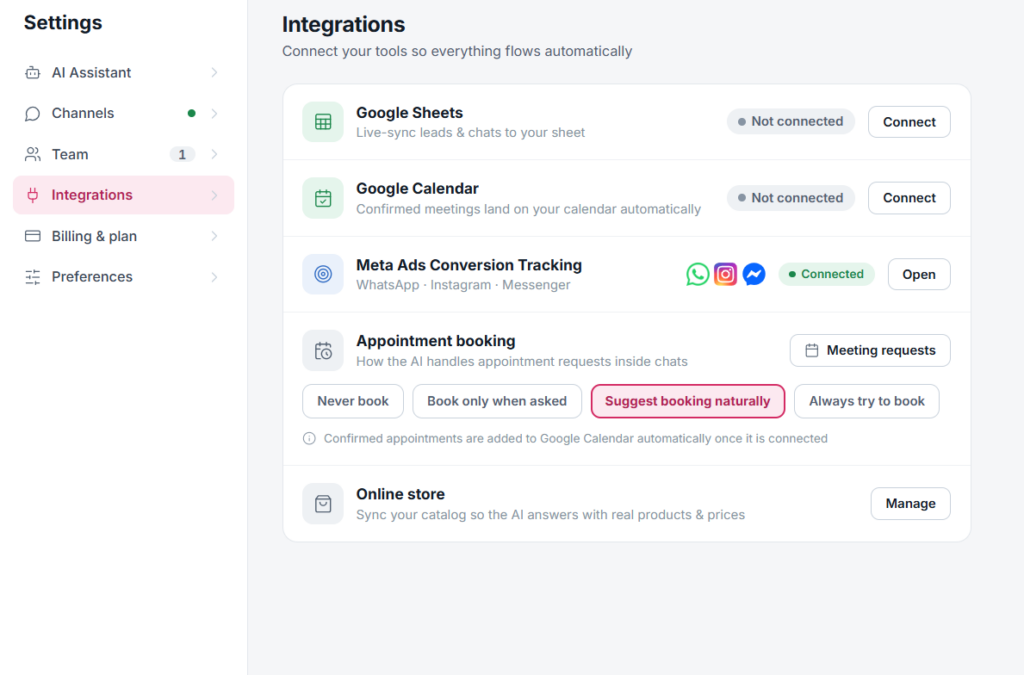
Google opens its own window to sign in and approve access.
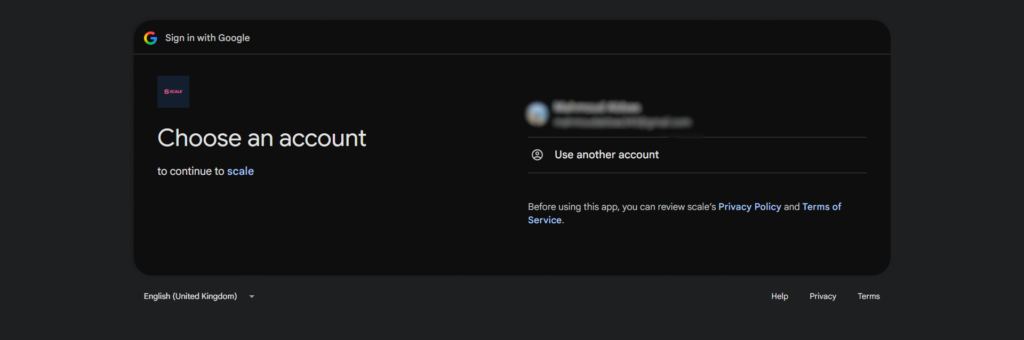
Step 2 — Choose your Google account
Google asks which account you want to connect to Scale.
Pick the account that owns the files or the calendar you want Scale to work with — you can add another account from the same screen if it is not listed.
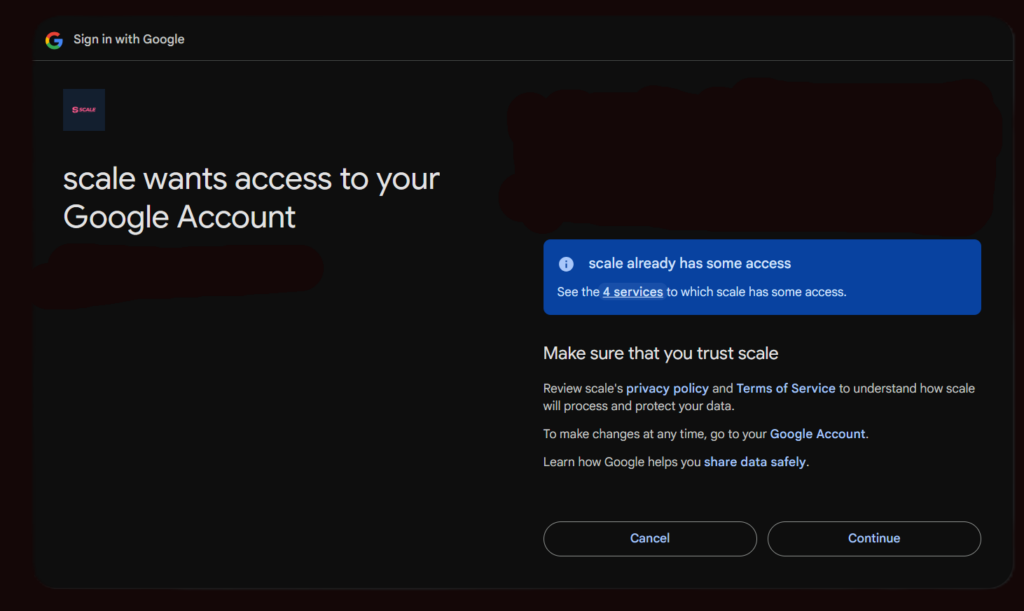
Step 3 — Review what Scale is asking for, and approve it
Google shows what Scale is requesting before you agree: access to your spreadsheets, to your calendar events, and to the files Scale creates in your Drive.
Read what is on the screen, then continue. Cancelling here connects nothing.
Step 4 — Confirm the connection
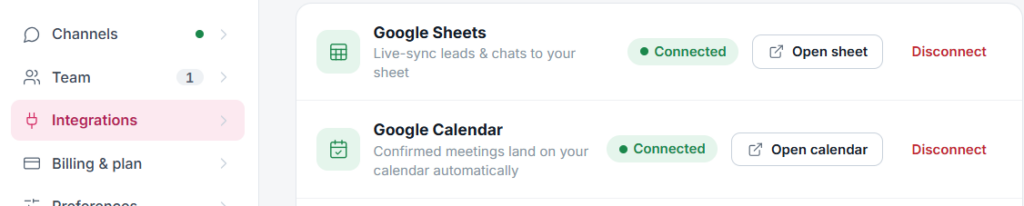
Approving returns you to the Integrations page in Scale.
Check that Google Sheets now reads as connected: you get a button to open it directly, and a Disconnect button whenever you want to end it.
After connecting
Under Settings → Integrations each service now reads as connected, with a button to open the sheet or the calendar and a Disconnect button beside it.
From that moment Scale writes new conversations into the sheet and adds confirmed appointments to the calendar. Conversations from before the connection are not backfilled.
Common issues
I cancelled the Google authorization screen
Nothing was connected. Go back to Settings → Integrations, press Connect again and complete the approval this time.
I connected the wrong Google account
Press Disconnect next to the service, then connect again and pick the right account on Google's account screen.
The status never changed to connected
Refresh the page first. If it still has not changed, the approval did not finish — start again from Connect.
I do not have access to the file or calendar
Connect the Google account that actually has access, or ask its owner to grant you access before connecting.
It worked and then stopped
An authorization can expire or be revoked from your Google account settings. Disconnect and connect again. If it keeps happening, contact Scale support.