
Overview
Scale connects to WhatsApp Business through Meta’s own sign-up flow, so you can bring your business number in without leaving the product.
Once the connection is complete, your WhatsApp Business number runs on the WhatsApp Business API inside Scale, and you can use it to handle customer conversations alongside the rest of your tools.
This guide walks through the whole thing, from the first sign-in to the moment Scale shows the number as connected.
Before you start
How to connect WhatsApp Business to Scale
Sign in and start the WhatsApp Business connection
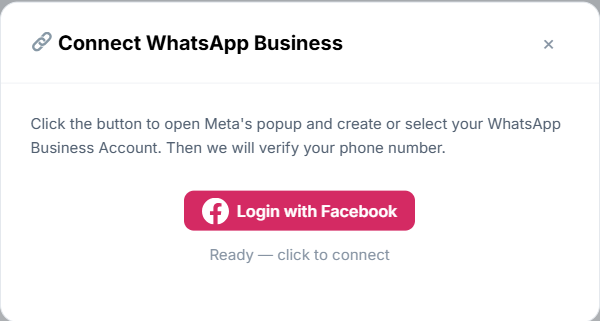
In Scale, choose Connect WhatsApp Business to begin.
Meta's window opens, where you create or select the WhatsApp Business account that belongs to your business.
Choose the option to sign in with Facebook, and use the Meta account that has access to your business assets and your WhatsApp Business account.
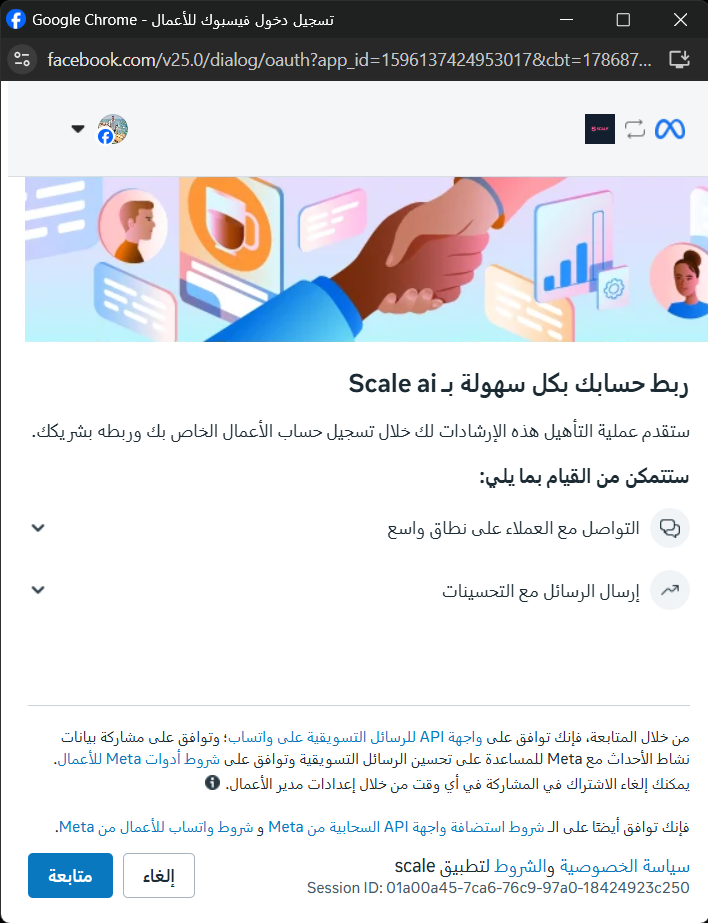
Review the permissions and continue
Once you have signed in, Meta shows you what the connection involves — the information and permissions Scale needs to complete the integration with WhatsApp Business.
Read what is on the screen, then continue to approve the connection.
These permissions are what let Scale work with the WhatsApp Business account you are connecting.
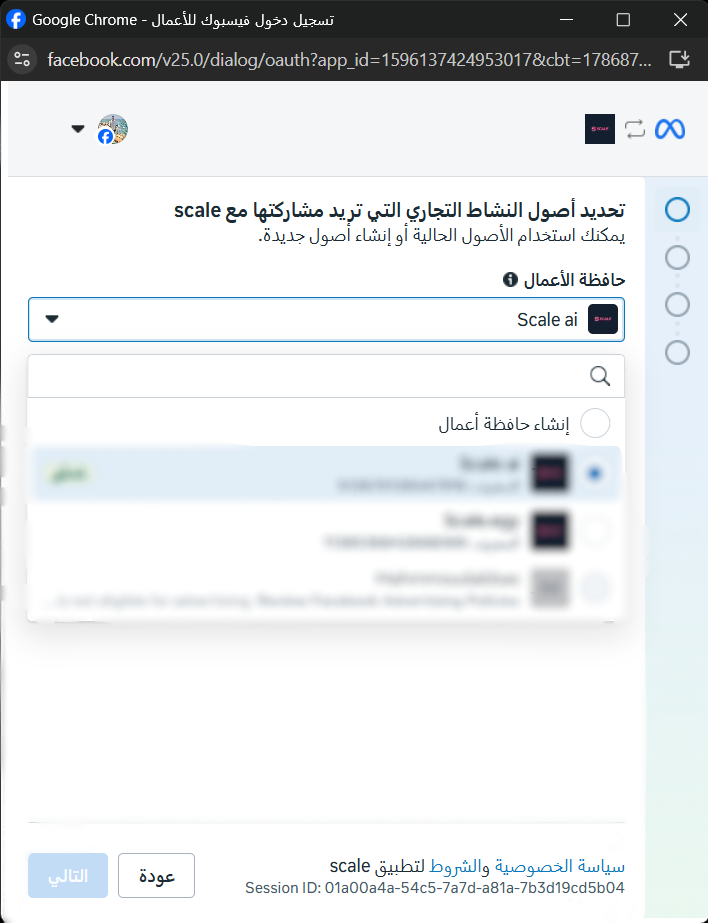
Select the Business Portfolio
Meta now asks which Business Portfolio holds the business assets you want to use with Scale.
Pick the right one from the list. If you do not have a Business Portfolio yet, you can create one in the same window and carry on.
Choose a portfolio you have permission to manage and that you want to use with your WhatsApp Business number.
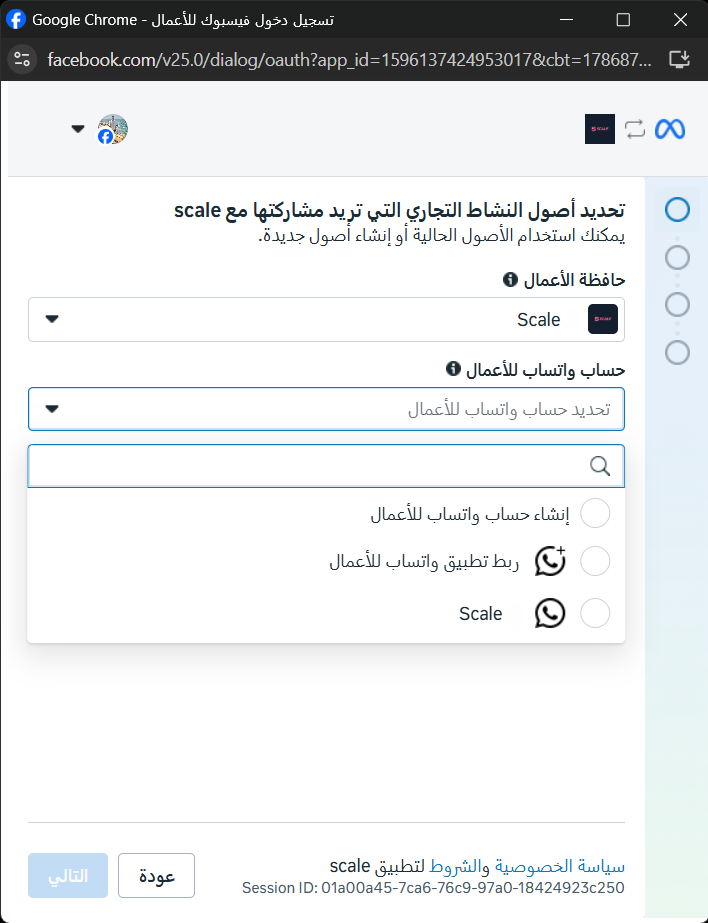
Choose the WhatsApp Business account and how to connect the number
Next, tell Meta which WhatsApp Business account to use — an existing one, or a new one, depending on the options you are offered.
Then choose how to connect the phone number: through the WhatsApp Business app on your phone, or by continuing with the direct setup available to you.
If you connect through the WhatsApp Business app, keep the phone that holds the number with you for the next steps.
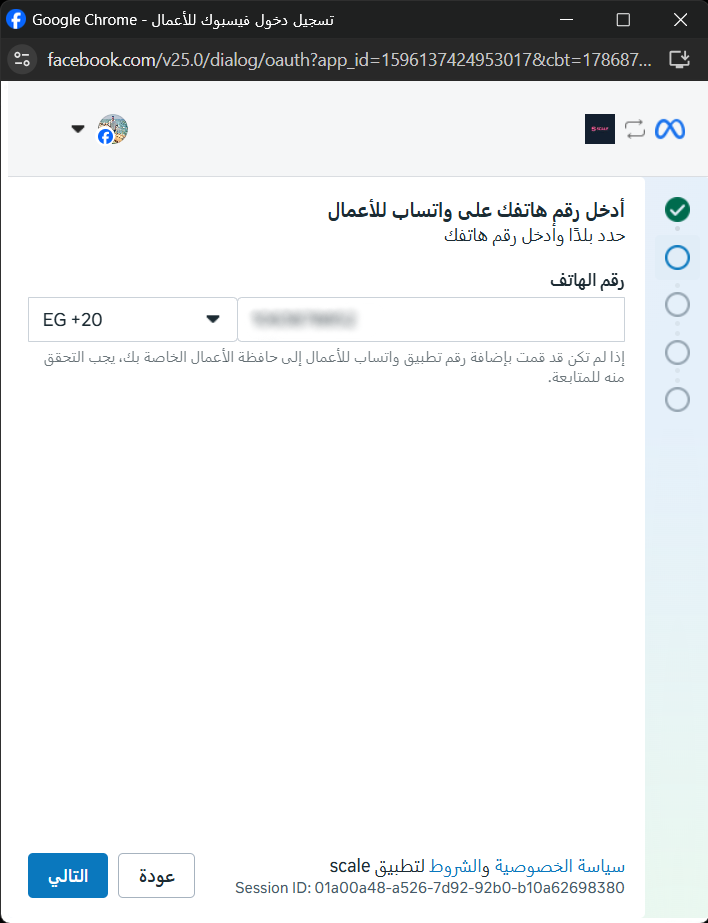
Enter the WhatsApp Business phone number
Enter the phone number you want to use with WhatsApp Business: select the country code, then type the number.
Check it carefully and make sure you can reach that phone — Meta verifies that the number is yours as part of the connection.
Continue to the verification step.
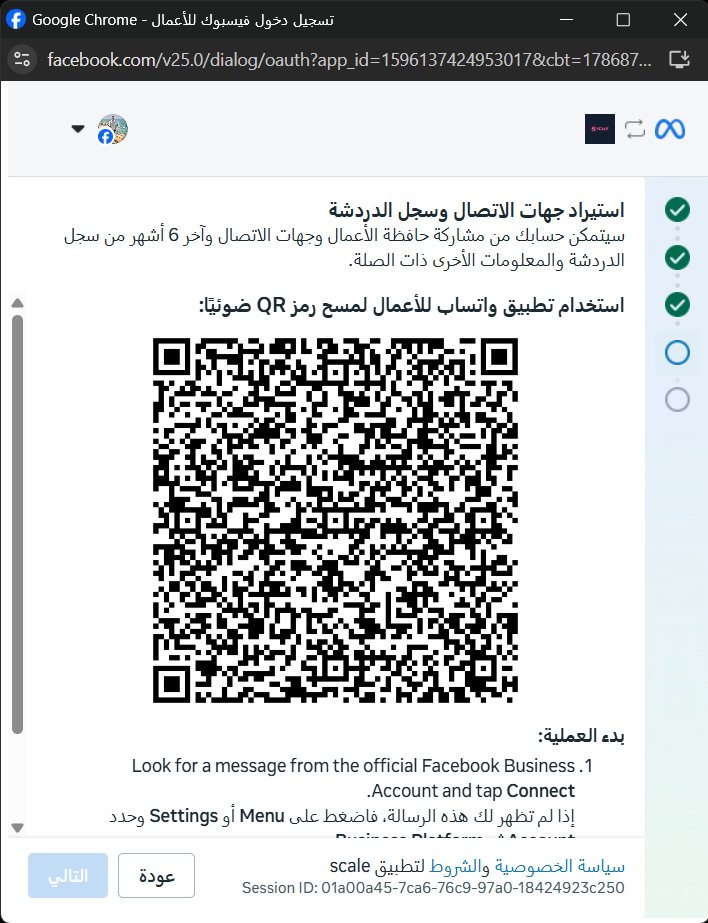
Verify the number
Meta shows a QR code to complete the connection.
Open WhatsApp Business on the phone that holds the number and follow the on-screen instructions to scan the code with the app's camera.
Once it has been scanned, WhatsApp asks you to confirm the connection.
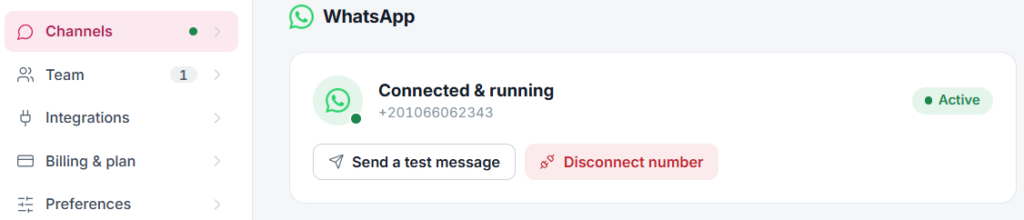
Confirm that the connection was successful
When verification finishes, the number is connected to Scale.
Scale shows it as connected and running, or the equivalent state in your current view.
Your WhatsApp Business number is now live on Scale, and the WhatsApp Business API integration is ready to use.
After the connection
With the connection in place, your WhatsApp Business number is ready to use in Scale: conversations arrive in one place and the rest of the platform can work with them.